

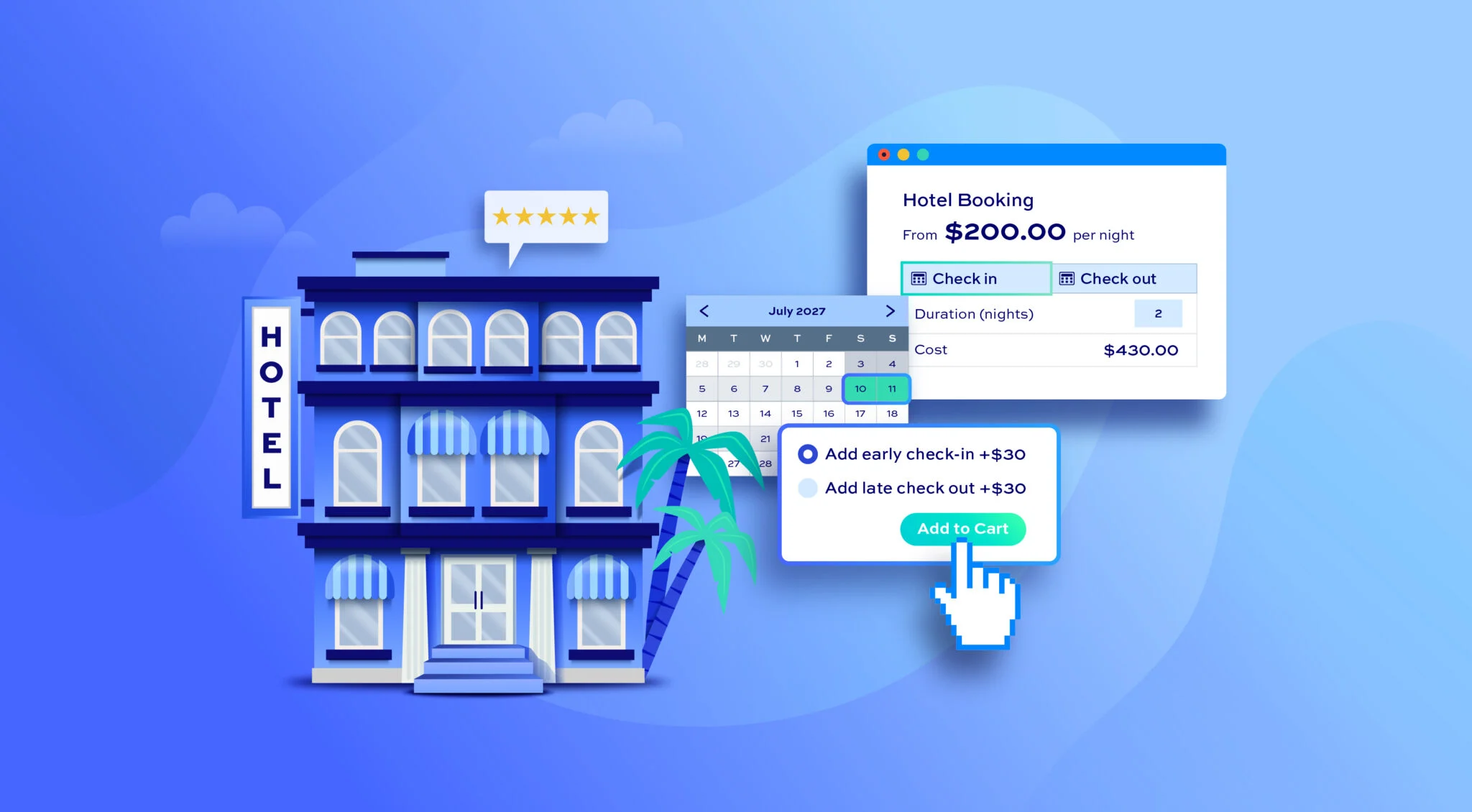
If you are running a hotel, a vacation rental, a car hire service, or any other accommodation or rental-based business on WooCommerce, the default product setup is not going to cut it for very long. Customers need to be able to select dates, choose room types or vehicle categories, add extra services, and see an accurate price based on all of those variables before they check out.
The WooCommerce booking plugin by Extendons handles all of this through its Advanced Booking feature, and this guide is going to walk through the complete setup from installation through to everything a rental or accommodation business needs to have configured properly.
What the Advance Booking Feature Is Actually Built For
Before getting into the setup, it is worth being clear about what the Advance Booking type is designed to handle because the plugin offers three booking types, and choosing the right one from the start saves you from having to redo things later.
The Advance Booking type is the one built specifically for businesses where customers are reserving something for a period of time in advance, whether that is a hotel room for three nights, a car for a week, an apartment for a month, or a piece of equipment for a few days. It supports date range selection, room or unit management, person type pricing for adults and children, add-on services, dynamic pricing based on dates and seasons, and Google Maps integration for displaying your location on the product page.
The Simple Booking type is better suited for straightforward single date reservations, and the Appointments type is built for time slot-based services. For hotels and rentals, the Advance Booking type is almost always the right choice, and everything in this guide is built around that specific setup.
Getting the Plugin Installed
Getting the WooCommerce booking plugin onto your store is a straightforward process that follows the standard WooCommerce installation flow:
- Log in to your WooCommerce account and go to My Subscriptions
- Find the Booking and Appointment plugin and click the Add to Store button next to it
- Follow the on-screen instructions, and the plugin will be added automatically
- Once added, go to your WordPress admin panel and activate it from the Plugins section
After activation, navigate to WooCommerce > Booking and Appointment, where the global settings live. It is worth spending time here before touching any product-level configuration because the global settings define defaults and options that carry through to everything you set up at the product level later.
Working Through the Global Settings First
The global settings area under WooCommerce > Booking and Appointment has several tabs, and while not all of them are specific to the Advance Booking type, a few of them are worth configuring before setting up your first bookable product.
General Settings
The first thing to do in General Settings is make sure the plugin is enabled by checking the activation checkbox. From there, the email notification settings are worth configuring early because these control the sender name and sender email that appear on all booking confirmation emails going out to customers. Setting these to match your business name and a monitored email address means customers receive professional-looking confirmations from the moment the first booking comes through.
Calendar Booking Settings
This section lets you assign colors to different booking statuses, including Pending Payment, Processing, On Hold, Completed, Cancelled, Refunded, Failed, and Draft. It sounds like a minor detail, but when you are managing a high volume of WooCommerce bookings across multiple rooms or units from the admin calendar, being able to distinguish statuses visually at a glance makes a genuine difference to how efficiently the calendar can be managed day to day.
Map Settings
If you want to display your property or business location on the product page using Google Maps, this is where you enable that option. For hotels and vacation rentals in particular, the map display is a genuinely useful customer-facing feature because it lets guests see exactly where the property is located directly from the booking page without having to open a separate tab to look it up.
Email Templates
The Email Templates tab is where you create and customize the email templates that go out to customers automatically for booking confirmations, status updates, and reminders. You can add custom variables to these templates and schedule when specific emails are sent, so the communication around each booking feels timely and professional without requiring manual emails for every reservation.
Services
Before setting up your bookable products, go to the Services tab and add any add-on services you want to offer alongside your bookings. For a hotel this might be things like airport transfers, breakfast, extra cleaning, a cot for an infant, or Wi-Fi if it is not included as standard. For a car rental, it might be GPS navigation, a child seat, or insurance upgrades.
Adding services here at the global level makes them available to assign to products later. Each service can be set as optional, meaning the customer chooses whether to add it, or mandatory, meaning it is automatically included with the booking. Pricing can be attached to each service individually, so the cost is calculated and added to the booking total automatically when the service is selected.
Setting Up Your First Advance Bookable Product
With the global settings configured, the next step is creating or editing the product that customers will book through. Go to WooCommerce > Products and either add a new product or edit an existing one.
In the Product Data dropdown, change the product type to Advanced Bookable Product. This is what unlocks the full WooCommerce booking plugin configuration, including the Advanced Booking option and all the associated settings tabs.
Once the product type is set, you will see several tabs appear in the product data section, and there are also checkboxes at the top of the product data area for Services, Persons, and Rooms. Checking the boxes that apply to your product is important because they reveal the corresponding settings tabs. For a hotel setup, you would typically check all three. For a car rental, you might only need Services and possibly Persons, depending on whether you charge differently based on passenger count.
Configuring the General Tab for Advance Booking
Inside the General tab within the product data section, the first thing to set up is the booking duration type. You have two options here, which are Fixed Duration and Customer-Defined Duration.
Fixed Duration means every booking for this product runs for the same set number of days that you define, and customers cannot change it. This works for products like a fixed-length tour package or a weekend retreat where the duration is part of what you are selling.
Customer Defined Duration is the more appropriate option for most hotels and rentals because it lets customers select their own check-in and check-out dates, and the price is calculated based on however many nights or days fall within that range. This is almost always the right choice for accommodation and rental businesses.
Other settings in the General tab worth configuring include:
- Maximum Bookings Per Day: Set how many bookings can be accepted for this product on any single day, which is relevant if you are managing availability across multiple units of the same type
- Booking Requires Confirmation: Check this if you want to review and manually confirm bookings before they are locked in, rather than having them confirmed automatically the moment they are placed. For higher-value accommodation bookings, this extra review step is often worth having
- Allow Customer Cancellation: Decide whether customers can cancel their own bookings from their account or whether cancellations need to go through your team
- Product Location: Enter the address or location of the property and enable the map display so it appears on the product page for customers
Setting Up Availability for the Bookable Product
The Availability tab is where you define when the product can actually be booked and how the date selection works on the customer-facing side. Here is what to configure:
- Enable User-Defined Time: Check this to allow customers to select specific check-in and check-out times alongside their dates rather than just selecting dates without times. For hotels where check-in and check-out times matter, this is worth enabling
- Display Times Based on Customer’s Local Time: This option shows the check-in and check-out times converted to the customer’s local timezone, which is particularly useful for properties attracting international guests who might be booking from a different timezone
- Starting Day of Booking: Set the earliest date from which the product can be booked which controls how far in advance customers can make a reservation
- Last Day for Booking: Set the furthest date into the future that a booking can be made, which gives you control over how far ahead your availability window extends
- Availability Ranges: Set the availability for specific date ranges, which is useful for blocking out periods when the property is unavailable for maintenance, personal use, or other reasons
Getting the availability settings right for WooCommerce bookings at this stage is important because it directly controls what customers see on the booking calendar when they are selecting their dates, and any gaps or errors here will show up as incorrect availability on the product page.
Configuring Pricing for Advance Bookings
The Pricing tab is where the financial side of the WooCommerce booking plugin setup comes together, and it offers considerably more flexibility than a simple fixed price per night or per day setup.
You can add multiple pricing ranges, and for each range, you define a specific duration and the price that applies to that duration. This is what makes dynamic and tiered pricing possible without any manual calculation needed on either the store owner’s or the customer’s side.
Pricing ranges can be based on:
- Specific dates or date ranges: Set higher rates for peak seasons, holiday periods, or high-demand dates, and lower rates for off-peak periods
- Specific months: Apply monthly pricing rules that automatically adjust rates based on the time of year
- Specific days of the week: Charge weekend rates differently from weekday rates if your demand patterns vary across the week
- Number of persons: Set pricing that adjusts based on how many guests are included in the booking, if your property or service is priced per person rather than per unit
The pricing table calculates the correct rate automatically based on whatever combination of dates and person count the customer selects, which means the price displayed at checkout is always accurate without any manual quoting required on your end.
Setting Up Persons for Multi-Guest Bookings
If your hotel or rental charges based on the number of guests or has different rates for different types of guests, the Persons tab is where all of that gets configured.
First, make sure the Persons checkbox is checked in the product data header so this tab is visible. Inside the Persons tab, you can:
- Set Minimum and Maximum Person Limits: Define the smallest and largest number of guests allowed per booking for this product. So if a room accommodates a minimum of one guest and a maximum of four, those limits go here, and customers cannot book outside that range
- Add Person Types: Create different categories of guests, such as Adults, Children, Infants, or Seniors, and set a specific price for each type. This means a booking for two adults and two children is priced accurately based on the rates assigned to each person type, rather than applying a flat per-person charge across the board
Person type pricing is one of those features that makes a real difference for accommodation businesses where the pricing structure is genuinely based on guest composition rather than just a flat nightly rate for the whole unit.
Configuring Rooms for Multi-Unit Properties
For hotels and properties with multiple rooms or units available for booking, the Rooms tab is where you set up how multi-room bookings work. Make sure the Rooms checkbox is checked in the product data header first.
Inside the Rooms tab, you can configure:
- Minimum Rooms Per Booking: Set the lowest number of rooms a customer must book in a single reservation
- Maximum Rooms Per Booking: Set the highest number of rooms that can be included in one booking, which is useful for preventing a single customer from booking more units than you want to allocate to one reservation
- Price Per Room: Set the cost per room per night so that the total is calculated accurately when a customer books multiple rooms in one checkout
The room booking feature is what allows a hotel to offer multi-room reservations through a single product rather than requiring customers to place multiple separate orders for each room they want to book, which makes the checkout process considerably smoother for groups and corporate bookings.
Adding Services to the Bookable Product
With the Persons and Rooms configuration in place, the last product level setup step is assigning the services you created in the global settings to this specific product. The Services tab within the product data is where you choose which of your globally defined services are available for customers to add to this particular booking.
For each service, you can decide whether it appears as:
- Optional: The customer sees the service listed and can choose to add it or leave it out based on their preference
- Mandatory: The service is automatically included with every booking of this product, and the customer cannot remove it. This is the right setting for services that are a non-negotiable part of the booking, like a cleaning fee for a vacation rental or a mandatory damage deposit
The pricing for each service is whatever you set when creating the service in the global settings, and it gets added to the booking total automatically when the service is selected or automatically included for mandatory services.
Managing Bookings From the Admin Calendar
Once the WooCommerce booking plugin setup is complete and bookings start coming in, the Booking Calendar under WooCommerce > Booking and Appointment is where all reservation management happens from the admin side.
The calendar gives you a full view of all upcoming and past bookings across all your bookable products in one place. Each booking appears on the calendar with the color coding you configured in the global settings, so the status of every reservation is visible at a glance without needing to open individual orders to check.
From the calendar, you can see which dates are fully booked, which have availability remaining, and which bookings are pending confirmation versus already confirmed. For hotels and rental businesses managing multiple rooms or units simultaneously, this kind of unified calendar view is one of the more practically valuable parts of the whole WooCommerce bookings setup because it replaces what would otherwise be a manual process of cross-referencing multiple spreadsheets or separate systems.
Conclusion
Setting up advance bookings for a hotel or rental business on WooCommerce is a more involved process than setting up a standard product, but the Booking and Appointment plugin by Extendons makes it manageable by organizing everything into a logical sequence of settings that build on each other in a sensible order.
Working through the global settings first, then the product level configuration covering availability, pricing, persons, rooms, and services, gives you a WooCommerce booking plugin setup that accurately reflects how your property or rental business operates and gives customers a booking experience that handles everything from date selection and room choice through to add-on services and accurate pricing in one clean checkout flow.
